Mobile data has become a necessity in modern human life. We use it to read news, watch videos, surf the web, chat with friends, and study online. However, mobile data is expensive and difficult to monitor since apps can consume it in the background without your knowledge.
Android phone users around the world buy mobile data subscriptions weekly and monthly. Sometimes, we run out of mobile data since apps consume it faster than expected, especially when the screen is off.
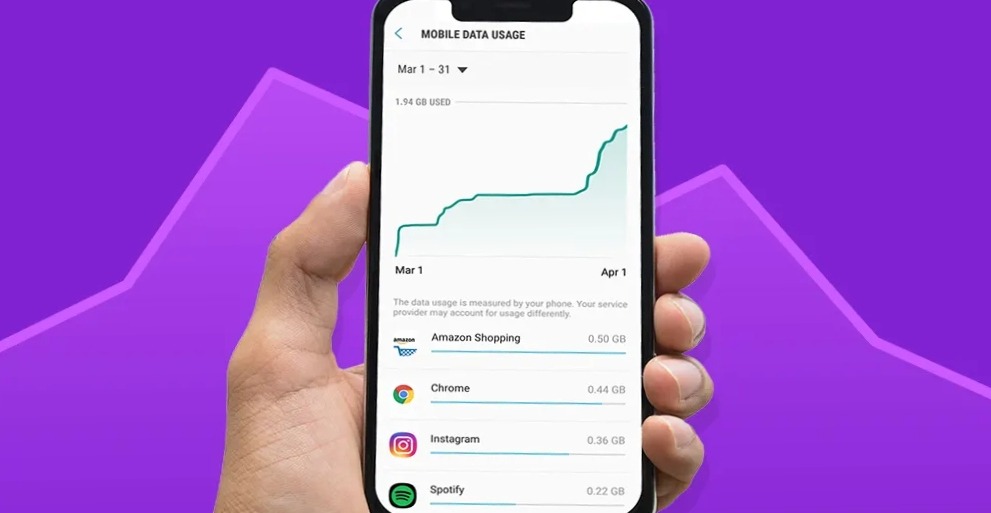
Most Android users are not aware of the built-in tools that help us reduce data usage on our phones. All we have to do is to learn a few settings and make tweaks occasionally. This article will tell you how to reduce mobile data usage on Android, track data-hungry apps, and make your phone’s data subscription last longer.
How to reduce mobile data usage on Android phones
1. Check apps that consume more mobile data than expected
The first step to reducing mobile data usage on your Android phone is to discover the apps that consume the most data. Some apps use hundreds of megabytes and gigabytes of traffic per day. Others eat mobile data in the background without your knowledge.
Android has a built-in feature that lets you view mobile data usage per application. To see the list of your apps that use mobile data:
• Open the Settings app on your Android phone.
• View the Network and Internet, Connections, or Mobile Network section.
• Look for SIMs, Internet, or Data Usage.
• Open App Data Usage or Mobile Data Usage.
• Check the list of apps.
Note: The precise location of the data usage settings depends on the Android version and phone manufacturer.
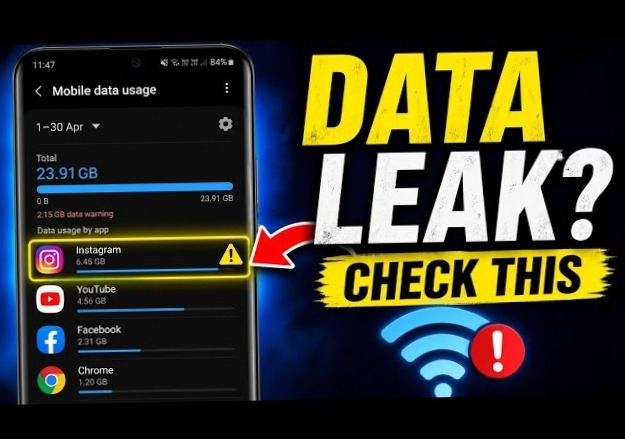
Once you discover which apps consume more data than expected, restrict their data usage in the background. It is a beginner’s tip to reduce mobile data usage on Android phones.
2. Enable the Data Saver feature on your Android phone
Data Saver is one of the best features in Android that prevents apps from consuming mobile data in the background. It limits how many apps can refresh their content, update automatically or synchronize when the phone has a cellular connection. However, when you open the app, they start using the internet normally.
Enabling the Data Saver feature can be one of the easiest ways to prevent apps from consuming your mobile data. To do that:
• Open the Settings app on your Android phone.
• View the Network and Internet or Connections section.
• Look for the Data Saver option.
• Toggle the switch to turn on Data Saver.
You might also find the Data Saver option in the Mobile Network section.
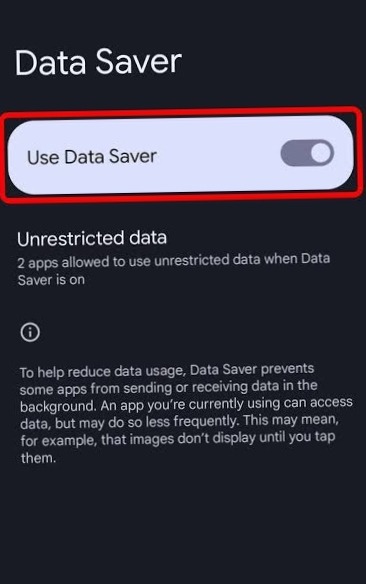
Data Saver does not stop the apps you are currently using from consuming mobile data. It is advisable to let the apps that require internet access to run normally when you open them. Still, most apps will stop automatically updating and synchronizing your data unless you use them actively.
3. Stop apps from using mobile data in the background
Some apps are designed to update their content, sync your data, and run automatically even when your phone is in sleep mode. Such apps can consume substantial amounts of mobile data in the background.
Most Android phones allow you to turn off mobile data for specific applications and prevent them from running in the background. These settings are usually available when you open the Apps section in the Settings application. To view and change the background data usage settings for a particular app:
• Open the Settings app.
• View the Apps section.
• Open the app that consumes too much mobile data.
• Look for Mobile Data, Data Usage, or Background Data.
• Toggle the switch to turn off background data for this application.
Repeat the steps above and turn off background data for all apps that use mobile data. However, make sure the apps you are using for communication, banking, and other essential activities can still access the internet.
Some Android phones let you stop selected apps from using mobile data without turning off their background data. Doing that will prevent the apps from running automatically in the background when you are not using them.
4. Reduce the quality of videos on the YouTube app
Video content is one of the biggest sources of mobile data consumption. Your mobile data subscription will run out faster when you watch one or two-hour-long videos on a YouTube channel. The bigger the resolution, the more data the videos will consume.
For instance, 1080p videos consume more data than 360p or 480p videos. The actual size depends on the length, compression, and resolution of the video. To reduce the amount of data consumed by YouTube videos:
• Open the YouTube app.
• Tap on your profile picture.
• Open the Settings menu.
• Look for the Video quality preferences option.
• Toggle on the Data saver switch for mobile networks.
You can also reduce the resolution of an individual video by opening the video, tapping the three-dot icon, and choosing a lower resolution. If you watch YouTube videos frequently, this trick will help you reduce your data usage significantly.
5. Stop apps from automatically updating over mobile networks
Most apps update automatically to improve their performance, fix bugs, and add new features. Some updates require a lot of internet data to download, especially when they are large in size. If your phone is set to update apps automatically over mobile networks, it can consume your data subscription without you knowing.
To change the Google Play Store settings and prevent apps from updating over mobile networks:
• Open the Google Play Store.
• Tap on your profile picture.
• Open the Settings menu.
• Go to Network preferences.
• Look for the Auto-update apps option.
• Change the settings so that your phone only updates apps over Wi-Fi.
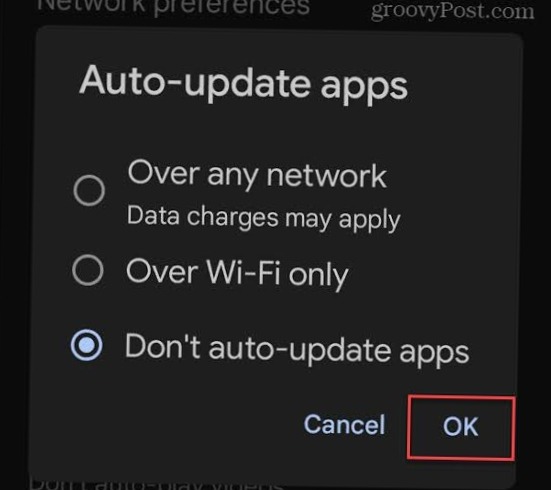
This feature prevents apps from updating automatically over cellular networks. Make sure you update the apps manually and only when your phone is connected to Wi-Fi.
6. Stop WhatsApp from automatically downloading media over mobile networks
WhatsApp has a feature that lets you view, listen to, and download media that other users share. You can disable the automatic download of photos, videos, and documents over mobile networks to reduce their data consumption.
Group chats are usually where WhatsApp users share the most media, especially videos. To reduce the amount of data consumed by WhatsApp:
• Open WhatsApp.
• Tap on the three-dot icon or Settings (it depends on your phone).
• Open the Storage and data option.
• Look for the Media auto-download option.
• Tap on When using mobile data.
• Disable the switches next to photos, videos, audio, and documents.
• Confirm your choice.
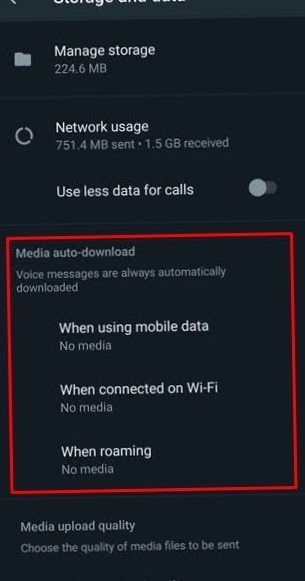
This way, WhatsApp will only download media when you tap on them. You can enable the automatic download of photos and videos when connected to Wi-Fi.
7. Be careful while using social networks
Social media platforms like Facebook, Instagram, and WhatsApp let you watch videos and view images. Most of these apps update their content automatically and consume lots of mobile data. If you use such apps for more than two hours per day, reducing their data usage will help you significantly.
Some social media apps let you reduce the quality of videos that play automatically. Make sure you disable auto-playing videos and only watch them when you tap on them. Most importantly, avoid watching too many videos on social media platforms when using mobile networks.
Additionally, disable the auto-download of photos and videos unless you have an unlimited data plan or are connected to Wi-Fi. The auto-play and auto-download options for social media platforms are usually available in their settings menu.
8. Listen to music and watch videos offline using Wi-Fi
Many apps let you watch videos and listen to music offline. To access their content without using mobile data, you need to download it on your phone when connected to Wi-Fi. For example, you can watch YouTube videos, Instagram stories, and TikTok videos offline using cellular networks.
You can set your preferred video and music streaming apps to only use Wi-Fi instead of mobile networks. Doing that will prevent them from automatically downloading videos and songs in the background. Some apps require you to reconnect to Wi-Fi to watch or listen to content that you have downloaded earlier.
It is easier to use social media and online video platforms when you have access to Wi-Fi. Always use it to watch videos or listen to music when you are at home or in the office instead of using mobile data.
9. Disable automatic cloud backup of photos, videos, and documents
Cloud services usually sync your data and store it on remote servers so that you can access it anytime and from anywhere. However, automatic cloud backup of photos and videos can consume large amounts of mobile data.
For instance, your phone can automatically upload several high-resolution videos to the cloud using mobile networks. It can consume a significant portion of your data subscription. To stop Google Photos from backing up data over mobile networks:
• Open Google Photos.
• Tap on your profile picture.
• Open Photos settings.
• Look for the Backup option.
• Check the mobile data usage settings for Google Photos.
• Disable mobile data backup if it is available.
Android phones have a variety of settings for cloud backup. Look for the option to prevent Google Photos, or any other cloud service, from backing up photos, videos, and documents over mobile networks.
You might want to disable mobile data backup to protect your data subscription from being consumed by cloud services. However, do not turn off automatic backup unless you know your phone will not lose access to important data.
10. Set a warning and limit for mobile data usage
Android phone users can set a warning or limit for mobile data to monitor how much data their phones are using. A warning helps you know when you are reaching your data limit, while a limit stops your phone from using mobile data when it reaches the set amount.
To set a warning and limit for mobile data:
• Open the Settings application on your Android phone.
• View the Network and Internet or Connections menu.
• Look for SIMs, Mobile Network, or Data Usage.
• Check the Data Warning and Limit option.
• Set a warning to indicate when your phone has used half or most of your mobile data.
• Set the limit to notify you or stop your phone from using data when it reaches your plan’s limit.
For example, a data limit will stop your phone from using mobile data when your plan is exhausted. You will set the data limit slightly lower than the amount of data included in your mobile data subscription.
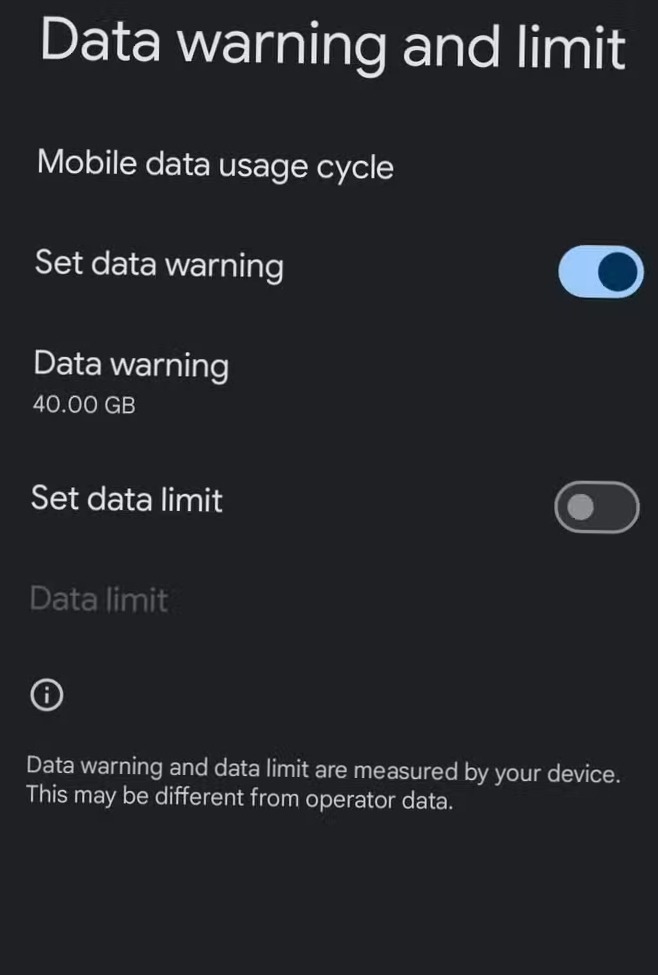
It is usually advisable to set a warning if you have a large data plan and a limit if you have a small data plan. The data limit and warning will vary depending on your mobile network provider. Some Android phones might not support the limit option.
11. Use the lite versions of your favorite apps
Several web services offer lite versions of their apps for Android phones. Lite versions are generally lighter and consume less data than the regular apps. However, their data consumption depends on how often you use them and what features they offer.
Your phone will generally use less data to download and run a lite app. They are usually lighter than the standard apps and make fewer requests to update and synchronize data in the background. Make sure you use the official lite versions of your favorite apps to reduce your data consumption.
You can use web versions of some apps instead of their Android versions if they offer similar features and are compatible with your phone.
12. Turn off mobile data when it is not necessary
Turning off mobile data prevents apps from using it when you are not actively using the internet. Some Android phones let you turn it off when connected to Wi-Fi or when you do not need to use the internet. For example, you can turn it off at night, when you are sleeping or studying, or when using apps that do not need an internet connection.
To disable mobile data:
• Swipe down from the notification bar.
• Open Quick Settings.
• Look for Wi-Fi and Mobile Data or Internet.
• Turn off the cellular data connection if your phone has such an option.
Some Android phones have a combined Internet section that lets you change the Wi-Fi and SIM settings. Turning off mobile data can stop your phone from connecting to the internet.
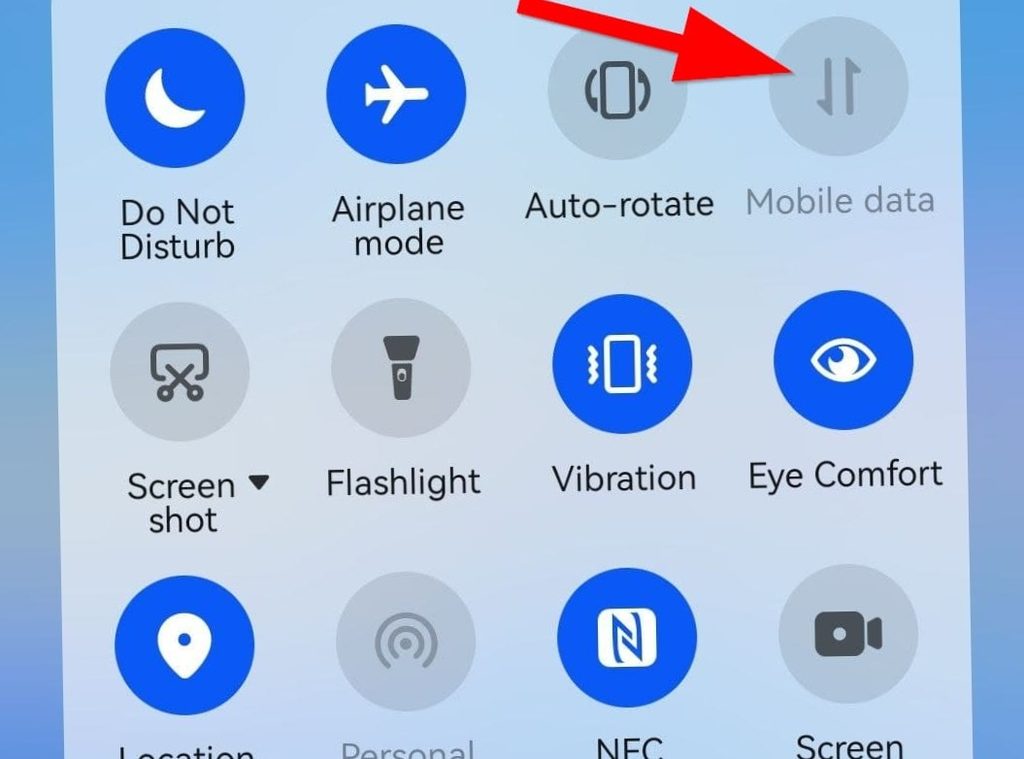
However, it will also stop apps like WhatsApp and Google Maps from receiving messages and updates. Make sure you leave mobile data on if you need to use the internet.
13. Use Wi-Fi to download large apps and videos
Apps usually consume a lot of data when downloaded for the first time. The same amount of data is used when they update automatically. Similarly, movies, games, music, and videos downloaded from the internet can also consume large amounts of data.
To reduce data consumption when downloading apps, movies, and other content, make sure you are connected to Wi-Fi. You can also schedule the downloads to happen when your phone is connected to Wi-Fi so that you do not have to pay for cellular data.
Always use Wi-Fi to download large files instead of using mobile networks. It will be a better option to save your data subscription for other activities, such as using social media and online shopping.
14. Reduce the use of Google Chrome mobile browser
Google Chrome and other web browsers consume lots of data when you open pages that have videos, images, and advertisements. Some pages reload automatically, while others display and play videos as you scroll down the page. To stop Chrome from consuming too much data:
• Open links to light versions of web pages when available.
• Avoid opening too many tabs with pages that reload automatically.
• Disable auto-playing videos.
• Download videos and images directly on your Android phone.
• Close tabs and pages that keep playing videos or any other media.
• Do not reload web pages unnecessarily.
Chrome’s previous Data Saver and Lite Mode options are no longer available. Therefore, you cannot use them to reduce data consumption in the browser. However, you can use the practical tips above to reduce the amount of data consumed by Chrome or other web browsers.
15. Track mobile data usage weekly to monitor consumption
Checking and analyzing your mobile data usage weekly is one of the best ways to reduce your consumption. It lets you see which apps are using lots of data and helps you identify ways to reduce their usage. To view and analyze your data usage:
• Open the Settings app.
• View the Network and Internet or Connections menu.
• Look for SIMs, Mobile Network, or Data Usage.
• Check the data usage for each app.
• Close apps that use lots of mobile data in the background.
You can also compare the data usage displayed on your phone with the data usage provided by your network provider. It will help you know how much data you have left in your plan. Monitoring your data usage weekly will help you determine which apps consume more data than expected.
Additional Tips to reduce mobile data usage on Android
There are other practical tips and settings that can help you reduce your mobile data usage on an Android phone. For instance, you should avoid making video calls when connected to cellular networks. You should reduce the quality of videos when watching tutorials or other videos.
You should also disable the auto-download option for photos and other media in your messaging apps. Avoid downloading the same file multiple times, especially when your phone is connected to cellular networks. Always check your hotspots usage and only let your friends and family use it when necessary.
Moreover, make sure you always turn off the hotspot when it is not in use. It can prevent your phone from using mobile data to provide internet access to other devices. Lastly, remember to track the day when your mobile data subscription renews and how much data you have.
These practical tips will help you reduce your mobile data usage on an Android phone. However, it is important to note that the amount of data you use will depend on your phone, the applications you use, and your cellular network.
Summary
The guide above shows you how to reduce mobile data usage on your Android phone. It explains that you can easily reduce your data consumption by identifying the apps that use it and restricting their background data. Turning on the Data Saver feature and using Wi-Fi to access the internet are other effective ways of reducing your data consumption.
You should also disable auto-play and auto-download features for videos and other media. Always use a trusted Wi-Fi connection to download large files, such as videos and apps. Lastly, you should monitor your mobile data usage weekly to know how much your phone consumes.
FAQs
Why is my mobile data disappearing so fast?
Mobile data disappears fast due to video streaming, social media, app updates, cloud backup, and auto-downloads.
Can Data Saver save my mobile data?
Data Saver can restrict background data for most apps. However, it cannot prevent apps you are actively using from consuming mobile data.
Which apps consume the most mobile data?
Video streaming, social media, video calling, cloud backup, and online gaming apps consume the most mobile data.
How can I reduce mobile data usage without switching off cellular data?
You can reduce mobile data usage by enabling Data Saver, reducing video quality, disabling auto-downloads, restricting background data, and using Wi-Fi to download large files.