
Introduction
Do you have an android phone that is starting to run slow? Maybe you are having trouble downloading or opening apps or it is freezing when you are trying to do something simple and quick like sending a text or watching a video? Whatever the reason or reasons are, there is not always a need to get a new phone.
Android phones can slow down for many different reasons. They could be running low on space, have too many apps on the phone or in the background or maybe some of the apps or the phone system itself simply need to be updated.
In this article, Informational Source will be providing you with 12 tips and tricks that are easy to follow along to help you to make your phone fast again. Many of these tips are beginner friendly. You don’t need to be a tech genius or have any type of experience in order to try and see some improvements right away.
1. Restart Your Phone
When your phone has been on for too long or it begins to run slow, restarting it can sometimes do wonders.It can fix some of the little “issues” that your phone may be having without even having to go under the hood and actually try to figure out what exactly is wrong with it. Simply turn the phone off and then on again to refresh the system. This should fix some of the odd behavior that could be happening with your phone like apps crashing or the menus not working correctly.
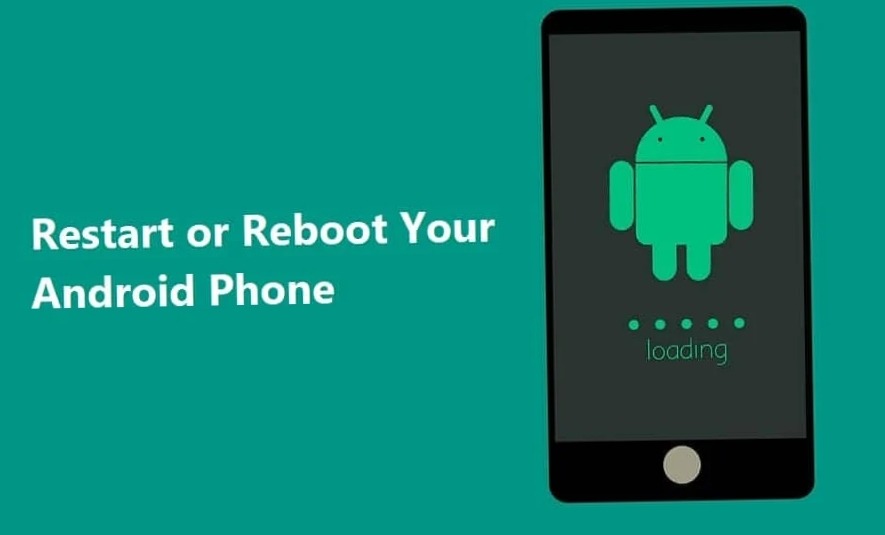
To restart the phone, you can either use the power button or swipe down or whichever way that you have on your device to get to the power menu and then tap on restart. Your phone will then restart and you will be all set! However, this alone might not fix all of the speed problems that you are having.
2. Clear Some Space
Having too many apps on your phone or running low on space can also cause your phone to slow down. There may be things that you need to delete from your phone or get rid of apps that you no longer use or need.
You can go into the settings on your android phone and search for storage. This should bring you to the menu where you can see how much space you have left on the phone once all of the apps have been downloaded. Take it upon yourself to delete some of the things that you don’t really need or use. You can also try clearing the cache that certain apps might have if they are really weighing the phone down.
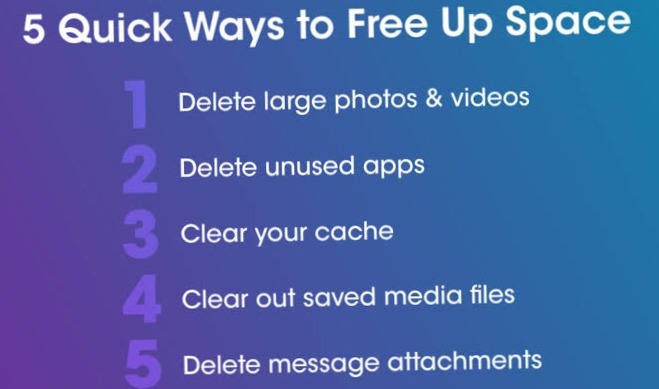
Try to always leave some space rather than filling your phone up completely.
3. Clear the Cache of Any Slow Apps
Apps that are a part of your daily routine and that you use regularly tend to cache a lot of information.Cached information is usually kept in order for the app to function properly and to run faster, but sometimes it is either corrupt or it is just taking up a lot of space. If a certain app is running slow or you suspect that it might be taking up a lot of space, you can try clearing the cache.
You can do this by navigating to the settings tab and then finding apps or applications. Once there, click on the app that you are trying to clear and then you will usually see storage and cache. Clear the cache if there is an option for that. Make sure not to accidently clear storage or data unless you really want to remove the app.
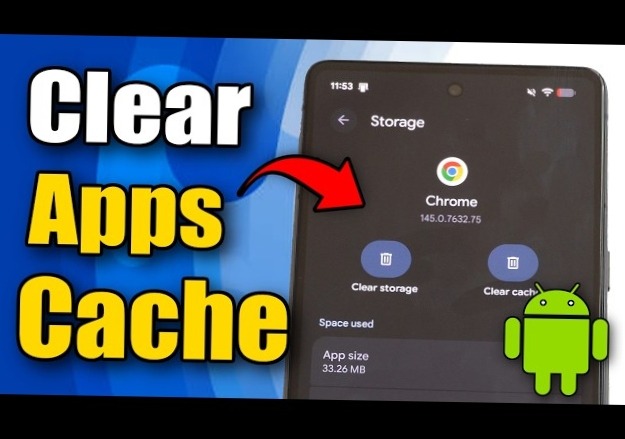
You don’t need to clear the cache of every single app, just the ones that you suspect might be causing some of the issues.
4. Remove Unwanted Apps
Some people tend to get apps and then forget about them. Some apps also like to do things in the background even when you aren’t using them so it is best to uninstall them if you don’t really need them.
To do this, just go to your app drawer and see what you can go ahead and remove. You might find some old games or old apps that you used to use and that you really don’t have a need for anymore.
Uninstall any apps that you find that you no longer want on your device and keep only the apps that you really need or want. Be very careful not to delete any of the system apps or the ones that came with your phone unless you really know what they do or what purpose they serve.
5. Update Your Android System and Apps
Updating your apps and android system can also sometimes cause phones to run a little bit more smoothly. Old versions if some software can sometimes cause apps to malfunction or run improperly.
You can update your system software by going to settings and looking for the system update tab. Once there, you can follow the instructions based on the phone that you have. You can also update your apps by going to Google Play and downloading the updates from there.
Always remember to have your phone charged and have some space open up before trying to update the system software since it could take a while for it to download and install.
This is only one of the many android tricks and tips that you can try. Updating your apps and android system can improve some of the functions of your phone, but it won’t always be a guaranteed fix.
6. Limit Background Activity
Sometimes, certain apps like to do things in the background even if you don’t want them to. This can sometimes slow down the phone and cause glitches. Review the applications that seem to do the most background activity. This is especially true for apps that you usually don’t use. You can go ahead and limit the background activity for these apps if you would like by searching for the battery section or background activity section in your applications.
Make sure not to restrict background activity for messaging or any other applications that you might need or rely on. These apps usually need to do things in the background in order to work.
The main point is not to restrict background activity for everything, just for some of the apps that are doing too much or that you don’t really need.
7. Reduce or Turn Off Animations
There are a bunch of animations that come with android as a part of the default settings. Animations add a nice touch to the overall experience, but sometimes they can also slow down the phone, especially older phones that aren’t as powerful or as strong as newer ones. You can go ahead and reduce or turn off animations wherever you can in your device. Animations are mostly found in developer options. To find the developer options, you can navigate to settings and then about phone and then build number and tap on the build number 7 times or so in order to activate the developer options. You might have to enter your security passcode if you have one.
Once the developer options have been turned on, you can now go to settings and then developer options and look for animation settings. Depending on your device, there might be three different animations: window animation scale, transition animation scale and animator duration scale.
Reduce or turn off these animations and your android phone should feel a little bit faster. The animation settings are mainly for aesthetics, but they don’t really do much in terms of boosting the speed of the phone.
8. Use Lighter Apps Wherever Possible
Some apps are a lot heavier than others and it really depends on how much RAM your device has. If you are using an older phone with a smaller RAM size, you definitely want to avoid these types of apps.
If an app keeps crashing or is really slow when you try to use it, it is best to just find another app that serves the same purpose but is lighter.
You can also use a website instead of an app in case the app is really heavy. Just make sure that the website is trustworthy and that it serves the same purpose. Make sure not to just install random apps or use modified apk files in case they somehow slow down your phone.
9. Keep It Cool
Phones tend to slow down when they overheat. This is especially true when your phone is doing heavy tasks like playing intense games or recording videos. It is best to avoid having your phone in direct sunlight or when you can charge it in a place that is away from sunlight or other heat sources. If you really notice that your phone is really hot, stop what you are doing and just put the phone in a cool place. If it is a good place, you can take it out and use it again.
It is best to try to avoid putting the phone in the fridge or putting it on ice because this can cause condensation that can damage the phone. If the phone tends to overheat a lot, it is also a good idea to check the battery health and maybe get in contact with the customer care of the manufacturer in case there is an issue.
10. Disable Unnecessary Notifications
Sometimes, notifications can be a little bit of a nuisance and they can slow things down a little bit. Some of the apps that are running in the background tend to do even more tasks in the background just in order to deliver those notifications. You can go ahead and disable unnecessary notifications from apps that you don’t need to hear from or get in contact with.
To do this, you can go to settings and then notifications or app notifications and disable them for apps that you don’t really need. You can also enable Do Not Disturb for some of the times that you need to just be left alone.
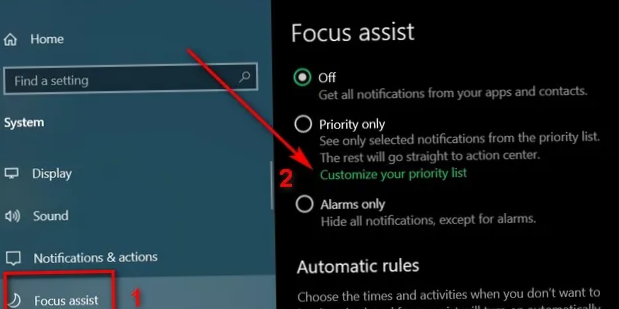
Disabling notifications is more of a convenience thing rather than something that can boost the speed of the phone, but it is still a great overall tip and a trick to keep your phone organized and clean.
11. Check Your Internet Connection
Sometimes, things may seem slow even if your phone is running smoothly. It could very well be that your internet connection is causing things to be slow. It is best to just check the connection. If you are having a really rough time loading web pages, videos, or apps online, it’s best to check if they are slow or if they are just simply out of date or broken. You can also just check your connection by going online and searching for a different site. This will tell you if the issue really is the site itself or if it is your connection and your phone.
If you suspect that it really is your connection, you can try to rebooting your router, reconnecting your phone to the Wi-Fi or making sure that you are close enough to your router for the phone to pick up the signal.
Remember that an internet connection will only really make things online faster.
12. Reset Your Phone if Everything Else Fails
Some phones really do take a toll on other phones and resetting them might be the only thing that will help. However, if you have tried all of the options and things still seem slow, you can always go ahead and perform a factory reset. A factory reset will wipe all of the data and apps that you have on your phone and it will restore it to the original software. This might not be a permanent solution to slow android phones, but it can at least give them a much-needed boost.
Before you reset the phone, it is very important to make sure that you have backed up all of the pictures, files, and other information that you want to keep. It is also important to make sure that you can log in to your google account or any other account that you have set up on the phone.
You can usually find the factory reset option in the settings tab. Make sure that you only do it when you absolutely have to and not just because it is the easiest way to make your phone faster.
Conclusion
A slow android phone doesn’t necessarily mean that you have to get a new one right away. It could just be that it just needs some tweaks and modifications in order to make it run faster. The 12 tips provided can really help you boost it right now. However, the results that you see will really depend on the type of phone that you have, the android version and the cause of the slowness.
At Informational Source, we want to make technology easy and beneficial for everyone. Make sure to try out these tricks and tips that are beginner-friendly. You should also try to keep your phone updated and well-maintained in general in order to see the best results.