Android smartphones are an essential part of our lifestyle – we study and learn with them, browse the internet, watch videos, play our favorite games, and chat with our friends and family.
However, what happens when your phone starts to lag?
I wish there was a way to make my Android device faster
Luckily for you, you will not have to buy a new smartphone – there are a plenty of tweaks and changes that you can make to improve Android performance. Keeping your device updated, managing storage and apps, and taking proper care of your hardware can help you achieve a significant boost in your phone’s performance. That said, let’s look at twelve easy Android tips that will make your phone faster and smoother.
1. Restart your Android phone
A simple reboot can often fix most of the issues that make your device slow or unresponsive. Android users tend to forget about this easy Android tip, as it may seem useless or even boring. However, restarting your phone can help you get rid of annoying glitches and lagging issues.
How to restart your Android phone?
• Hold the power button or swipe down to open the power menu and select Restart.
• Wait until your device reboots.
• See if the problem is gone.
Of course, rebooting your device will not fix all issues, but it is a great way to give your phone a short break and help it recover from a potential lag.
2. Free up internal storage
Modern smartphones allow you to store thousands of your photos and videos; however, this is still not enough for some of us. A storage full of data can often slow down a smartphone, so make sure you have at least some free space on your device.

How to free up space on Android?
• Open Settings.
• Go to Storage (it may be listed under Battery and device care).
• Delete unnecessary files or run a cleaning app.
Do not fill up your internal storage – leave at least a percent of free space for your device to function properly.
Pro tip: You can also back up your photos and other media to the cloud to make more space on your device.
3. Delete unused apps
Did you download apps to your device and forget about them? Time to delete them! Unused apps take up space on your device and run in the background, disrupting your system and wasting your battery.

How to delete unused apps?
• Open Settings.
• Go to Apps or Apps and Notifications.
• Delete all the apps that you do not use on a regular basis.
• Close the ones that you use rarely.
Note: Some system apps cannot be deleted. If you do not use a particular system app, you may disable it. However, make sure you do not disable any critical system apps, as your phone may stop working.
4. Update apps and operating system
Make sure your apps and operating system (OS) are always up to date. New updates often contain performance improvements, stability fixes, and other essential changes. An outdated system or apps may also stop working properly and interfere with each other
How to update your Android OS?
• Connect your device to a stable Wi-Fi network.
• Charge your phone to at least 50%.
• Open Settings and go to System update or Software update (the exact name and location may vary depending on your phone manufacturer).
• Select Download update and follow the on-screen instructions.
How to update apps?
• Launch Google Play Store.
• Tap your account in the top left corner.
• Look for the app and device management section.
• Update all apps that need an update.
Remember that not all updates make your phone faster, but they help to keep your device stable and secure.
5. Clear apps cache
Apps store temporary data on your device so they can open faster and work smoother. This data is called cache, and apps can use hundreds of megabytes or gigabytes of internal storage. Clearing an app’s cache can help you free up space on your device and fix some software glitches.
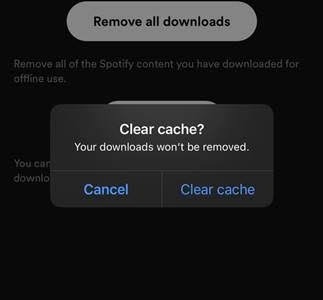
How to clear app cache?
• Open Settings > Apps > [App name] > Storage or Storage and cache.
• Tap Clear cache.
Do not confuse Clear cache with Clear storage or Clear data! Clearing storage or data deletes all information on your device, including app data and potentially your login credentials.
You should not need to clear app cache very often — only when you experience issues with a particular app.
6. Limit apps background activity
Background activity means that an app continues running even when you are not using it. Some apps notify you, synchronize your data, update their content, and do other useful things while being in the background. However, there are also apps that secretly waste your battery and slow down your device.
How to stop apps from running in the background?
• Open Settings.
• Go to Apps > [App name].
• Look for the battery optimization or background activity section.
• Disable background activity for apps that you use rarely.
You can also disable apps background activity in your phone settings if your device supports this feature
However, make sure you do not disable important apps like alarm clock, social media, and other apps that notify you about important events.
7. Delete unnecessary widgets and live wallpapers
Widgets and live wallpapers are a fun and interactive way to personalize your device. However, some widgets update their data frequently, and live wallpapers require extra processing power. Heavy widgets and animated wallpapers can slow down your phone, especially if you have low RAM.
If your phone tends to slow down and have a short battery life, try disabling live wallpapers and removing widgets that are not useful to you.
What you can do?
• Remove apps widgets.
• Use simple wallpapers.
• Limit the number of widgets that update their content.
• Keep your home screen organized.
This tip may not make a noticeable difference on modern flagship devices, but it can have a noticeable impact on old and low-end smartphones.
8. Reduce animation scale
Every app and animation on your phone has animation scale. Animations on Android make your apps and games smooth and responsive, but they can also affect your phone performance, especially on older devices
You can reduce animation scale on Android 9 Pie and newer versions of Android by enabling Developer options.
How to reduce animation scale?
• Open Settings and go to About Phone.
• Tap Build Number 7 times until you see a confirmation message (you may need to enter your screen lock code).
• Open Settings and tap Developer options.
• Look for Window animation scale, Transition animation scale, and Animator duration scale.
• Set animation scale to 0.5x.
• Close the Developer options.
The exact names and locations of these settings may vary depending on your phone manufacturer
Reducing animation scale does not make your phone faster, but it can give you a noticeable performance boost on older devices. Keep in mind that you should not change any other settings if you are not familiar with Developer options.
9. Do not overheat your phone
Your phone’s hardware plays a big role in how fast and smooth it is. Modern processors and graphics cards in flagship Android devices are very powerful and can withstand heavy use. However, heavy use can make your phone hot, and a hot phone slows down to prevent overheating and hardware damage.

Some activities that can make your phone hot include:
• Playing graphics-heavy games.
• Watching videos for long periods of time.
• Using navigation apps.
• Recording videos.
• Charging your phone in a hot climate.
How to prevent your phone from getting hot?
• Do not leave your phone in direct sunlight.
• Close resource-heavy apps when you are done using them.
• Avoid playing graphic-heavy games and watching movies for hours at a time.
• Do not charge your phone while it is hot.
• Do not use your phone in very hot environments.
Keeping your phone cool under control can help you maintain its performance and extend its battery life.
10. Factory reset your Android phone
If you cannot fix your Android issues with the above Android tips, you can always factory reset your phone. This will wipe all your data and restore the factory default settings of the operating system.
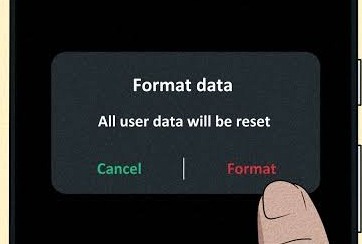
Factory reset may fix some issues, including:
• Software glitches,
• System instability,
• Persistent third-party app issues,
• Performance and speed issues,
• Lagging animations and graphics,
• Crashing.
How to factory reset your Android phone?
• Open Settings.
• Go to System or Backup and reset.
• Tap Factory reset.
• Confirm that you want to reset your device.
• Wait for the process to complete.
Make sure you back up all your important data before factory resetting your device, as all personal information and apps will be deleted. You can always choose the option to back up your device data and settings in your phone settings.
11. Use a good antivirus
Malware and viruses can severely impact your phone performance. Viruses and malware can run in the background, consuming your system’s resources and slowing down your device..
There are many reputable antivirus apps that you can use to keep your device protected. Make sure to scan your device regularly to catch and delete any malicious software.
12. Take care of your phone
Physical damage can also affect your phone’s performance. Broken hardware, especially damaged processors or graphics cards, can decrease your phone’s performance significantly.

To keep your phone working at its best:
• Avoid physical damage (drops, water, etc.).
• Keep your phone in good condition.
• Do not expose your phone to extreme temperatures.
• Clean your phone regularly.
Taking care of your device can help you prolong its lifespan and ensure that it continues to perform well for years to come.
Conclusion
Improving the performance of your android phone is surprisingly easy and can be done by anyone. You can do it by taking a few basic steps, such as, for example, freeing up space on your phone, deleting unwanted applications, updating your smartphone, deleting cache files, and reducing your phone’s background activity. Keeping your phone cool and getting rid of suspicious programs can solve various performance problems effortlessly.
It is vital to understand that not all android phones are the same, so performance improvement techniques may vary from device to device. Consequently, it is advisable to try the most evident solutions first and then move on to the next level if your efforts do not yield successful results. A factory reset should be used as a measure of the last resort when all other methods have failed to produce the desired effect. You will be able to enjoy a faster android phone after adopting the recommended above procedures without spending a fortune on a new smartphone.