Android smartphones make the work and everyday life of students, Internet surfers, entertainment lovers, and people who study, surf the Internet, entertain themselves, and communicate with others easier. However, Android sometimes freezes or freezes randomly as you are trying to operate it.

There are multiple factors that contribute to Android phones freezing, such as low memory, software problems, unreliable apps, and other issues. Fortunately, most of them can be solved without taking the gadget to a service center. Below are the best Android tips on how to stop your phone from freezing.
1. Restart Your Android Device
A forced restart can fix some of the easiest software issues that make the Android screen freeze.
If your phone is still responding to inputs, head to the Settings app or the power menu and choose Restart or Shutdown. Android 10 and 11 users should follow slightly different instructions depending on the model: for example, on Google Pixel phones, you may need to hold the Power and Volume Up buttons at the same time. If your device is unresponsive, you might need to do a hard reboot by holding the Power key for more than 30 seconds. On most Android devices, 30 seconds of holding the Power key is enough to restart a phone.

The forced restart should fix some minor glitches that make the phone unresponsive. If your Android tablet or phone still freezes after a reboot, do not worry: there are other proven Android tips and tricks on how to make your phone not freeze.
2. Check Your Storage Space
Android phones need free space on the internal storage to operate normally. If you run out of space, the Android system will start malfunctioning.
First, check your storage space by going to Settings > Storage . Here, you will see how many gigabytes are occupied and how many are unoccupied. It is better to delete videos, downloads, apps, and other data to create at least several gigabytes of free space.

You may need special Android tools like Google Files to delete unnecessary data on your phone.
It is better not to fill your phone to the brim: keep several gigabytes free to avoid Android freezing issues. Before deleting data, make sure to back up your photos, documents, and videos.
3. Update Your Android OS
An Android phone with a non-updated OS tends to malfunction and behave unexpectedly. Do the following to update your phone’s software:
1. Open Settings .
2. Scroll down to find the System or Software Update option.
3. Open it and select System update or Check for updates .
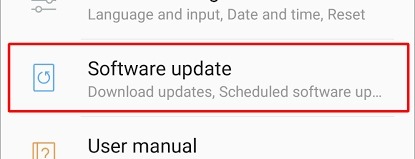
The exact terms may vary depending on the manufacturer and the Android version, so double-verify the instructions for your specific gadget. When downloading the system update, make sure to have access to a stable Wi-Fi connection and sufficient battery power.
4. Update Apps that Freeze Your Phone
Sometimes the issue is not in the Android system but in a particular application. Apps tend to malfunction and use excessive memory, which can cause the whole Android OS to freeze and misbehave.
To update apps on your Android device, launch the Google Play Store , tap your profile picture at the top left, then select Manage apps & device .
Here, you will be able to update all apps that have available updates. If your Android device was freezing after launching a particular application, update it first. If you still experience Android screen freezing issues, clear the application’s cache or uninstall and reinstall the program if your phone’s data is backed up.
5. Clear Cache of Problematic Applications
When applications run on your phone, they generate cache files to improve performance. These files can become corrupted and problematic, freezing one particular android app.

To clear application cache:
1. Open Settings .
2. Launch the Apps section.
3. Pick an app that tends to freeze and tap Storage & cache .
4. Choose Clear cache .
Do not select Clear storage or Clear data because it may delete critical information about the application’s functioning.
Clearing cache is usually enough to fix Android app freezing issues. If it does not help, try one of the other Android tips and tricks below.
6. Close Unnecessary Background Apps
Having multiple background apps open can slow down your Android device, particularly if you have a phone with low RAM. To close background applications on Android 10 or 11, open the Recent Apps screen and close the apps you are not going to use.
Closing background apps is not mandatory: Android knows how to manage them on its own. However, it is better not to run too many graphic-intensive applications such as games, video editors, or other RAM-hungry programs at the same time. If your phone still freezes after you close background apps, proceed to the next tips and tricks.
7. Make Sure Your Phone is Not Too Hot
An Android device can throttle its performance if it becomes too hot. It will stop working correctly for a short while until it cools down. Such behavior may occur if you are playing graphics-intensive games, recording videos, using GPS, or trying to charge your phone with a broken cable.
It can also happen if you leave your phone in scorching sunlight or near a space heater. If your phone gets too hot, avoid touching the screen and shut it down completely, then wait for it to cool down to room temperature. Do not put your phone in a refrigerator to cool it down: thermal shock can damage hardware components.

If you leave a thick phone case on your device, take it off to help it cool down. Do not attempt to unlock or use your phone while it is too hot.
8. Remove Unwanted or Suspicious Apps
Malfunctioning apps are another reason Android devices start to freeze. A suspicious application might freeze a phone, show intrusive pop-up ads, and drain the battery. If your phone freezes a lot after you installed a new application, try to delete it. To uninstall apps that freeze your android phone, launch Settings > Apps , select an app, and choose Uninstall if available.
Make sure not to download applications from untrusted sources. It is better to stick to the Google Play Store and read user reviews before installing any application. You should also watch out for app permissions: most apps ask for permission to access photos, videos, the microphone, and other phone functions.
If you suspect that one of your downloaded apps is making your phone unstable, try enabling Android safe mode. This will disable all applications that were not preset on your phone. The process of entering safe mode may vary from a phone to a phone, so double-check the instructions for your device.
If your phone is working well in safe mode, there is a high chance that one of your third-party apps is causing Android to freeze.
9. Check Your Phone Battery and Charger
Battery issues can also cause Android phones to freeze. Faulty chargers and cables may damage the battery, affecting the overall performance of the phone. If your phone freezes while connected to a charger, switch to a different cable and power supply.
See if the issue is consistent when you are trying to charge your phone. Avoid using damaged or non-original charging accessories as they may put excess stress on the battery. If your phone tends to turn off unexpectedly or restart randomly, the battery health might be compromised. A swollen battery or a broken back panel can also prompt the phone to restart or freeze.
If your battery is deformed, stop using and charging your phone and contact a service center. Do not attempt to disassemble the battery yourself.
10. Reset App Preferences and Settings in Android
Applications that freeze on android can also be fixed by resetting the app preferences. The process may vary from a phone to a phone, so navigate to Settings > Apps . From here, select Reset app preferences .
The option will be labeled differently on different android devices. By default, this tool does not delete any files from your phone. It may reinstate the default settings for disabled apps and disable third-party apps that came with your phone.
Make sure not to reset other confusing or unknown developer settings. There is also no point in trying to use performance-enhancing apps on Android: they are mostly unnecessary and can cause more harm than good.
11. Factory Reset Android Phone if Necessary
If the abovementioned Android tips and tricks did not work and your phone still freezes, you may need to perform a factory reset. It will restore factory settings on the Android system, erasing all personal data, files, photos, and videos from the device.
Back up your data before proceeding. You will need a Google account to sign in after the reset, so make sure you know the login details for the account you are going to use. To factory reset your phone, launch Settings , go to System or General Management, and open Reset .
Next, choose Erase all data (factory reset). Double-check all the settings and only confirm the operation when you are certain that all your data has been backed up. Again, the exact steps may vary from a phone to a phone.

It is better not to factory reset your device on your own if it freezes too much and you cannot back up your data. If your phone still freezes after the factory reset, it may need to be taken to a service center.
After the factory reset, do not install all the apps you used to use at once: it can slow your phone down. Install programs one by one and monitor the performance.
12. When You Should Take Your Phone to a Service Center
Sometimes Android stops working due to hardware issues. Such problems are usually complicated and should be addressed by a professional. Below are examples of hardware malfunctions that may require you to take your phone to a service center:
• Android 9 or newer stops working after a factory reset;
• The phone is unexpectedly restarting or shutting off;
• The phone screen is unresponsive after being dropped or getting wet;
• Android is freezing due to overheating and having a warm case;
• Android freezes and you see a swollen battery.
A trained professional at a service center will be able to diagnose the issue and repair your device.
Conclusion
Android can suffer from multiple issues that make it behave erratically and stop responding. However, such problems do not necessarily mean that your device is faulty. Multiple software problems can be fixed by simply restarting your device. If Android still freezes, you can try to update your system or applications. It is important to delete apps that cause malfunctions and clear their cache data.
Remember to back up your files before factory resetting your device. If your Android device still stops responding, it might need to be taken to a service center. By using the abovementioned Android tips and tricks, you will be able to fix the problems on your own or have a general understanding of the issue.