Android smartphones have become a vital part of our everyday lives. We use them to communicate with friends and family, attend online classes, do work, shop online and so much more. There are thousands of features that we can use on an android smartphone. However, the majority of us only tend to utilize the basic functions of our phones.
There are numerous useful features and settings that we can find in the Settings application of our phones. Some of them can help in keeping our android phone more private, help in saving battery, make our phone more useful and so much more.
The location and name of the features can differ based on the manufacturer of our smartphones. Some of the most popular manufacturers are Samsung, Google Pixel, Xiaomi, Oppo, Vivo, OnePlus and others. However, the majority of us tend to find similar features and settings in our android phones.
Let us take a look at 15 android settings and features that we should know about.
1. Keep Your Android Phone Updated
One of the most crucial aspects of keeping our smartphones safe and secure is making sure that we update them regularly. Android updates can bring us a variety of different changes, such as new security features or general improvements to the software.
As such, it is always a good idea to update our android phones as often as we can to ensure that they are not vulnerable to security breaches or issues. Besides that, some applications might not work properly on outdated versions of android.
We can typically find the Update option in Settings → System Update or something similar.
It is also a good idea to make sure that our battery is sufficiently charged and preferably connected to a stable source of power before performing a big update.
Why should you update your phone?
• Improves the security of the phone
• Fixes bugs in the current software
• Improves phone stability
• Introduces new features
• Fixes software incompatibility issues
It is always a good idea to keep your android phone updated and ready to use the newest features.
2. Turn On Dark Mode
Dark mode is a great way to change the appearance of some of the interface elements of our smartphone. It can be especially useful if we happen to use our smartphones at night.
We can typically find the Dark mode option in Settings → Display → Dark Theme
Most manufacturers also allow us to turn Dark mode on and off from the Quick Settings menu located at the top of our smartphones. In some cases, we can even set our phones to turn on Dark mode at night and turn it off during the mornings automatically. This way, we do not have to manually turn it on and off several times a day.
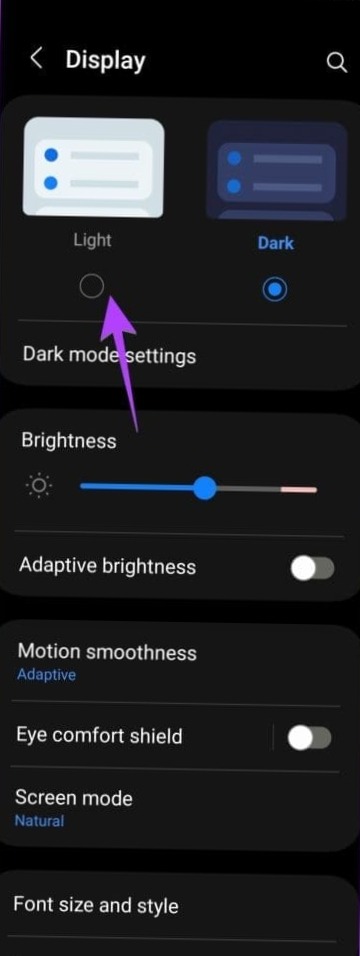
Dark mode is especially useful because it helps in conserving the battery, especially if we have an OLED screen on our smartphone. The reason behind that is that OLED screens do not light up the pixels that are meant to be black.
3. Use Adaptive Brightness
Adjusting the brightness of our smartphones throughout the day can be a tedious process. However, most modern smartphones offer an Adaptive Brightness feature that can do that for us.
We can find the Adaptive Brightness option in Settings → Display → Adaptive Brightness.
The adaptive brightness will automatically make our smartphone brighter during the day and darker during the night. This way, we do not strain our eyes looking at our phones and conserve battery life at the same time.
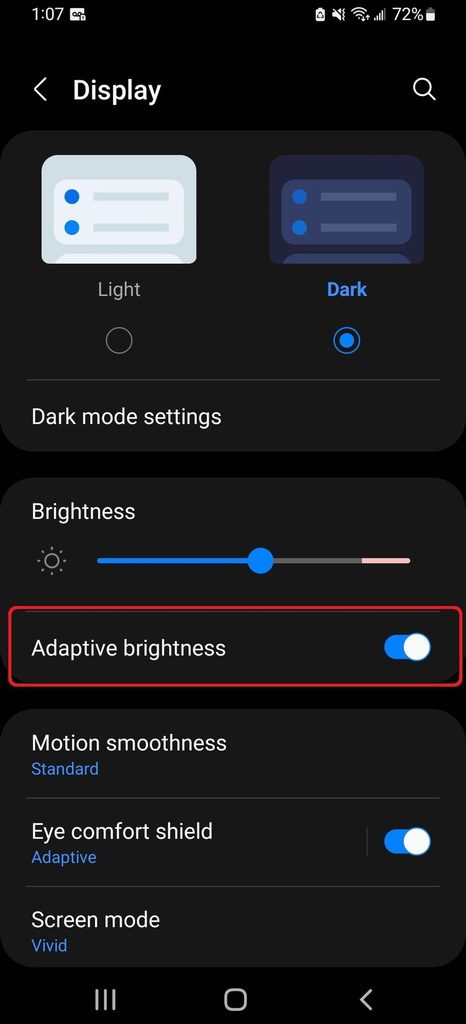
Adaptive Brightness might not work as intended at first. Hence, it might be a good idea to manually adjust the brightness of our smartphones and let the phone learn the brightness levels that we like the most.
4. Review App Permissions
When we install most of the apps that we use, they will typically ask for our permission to access some specific features of our smartphones. For instance, apps will typically ask for our permission to access our camera, microphone, gallery, location, files, etc. Some of the permissions that apps ask for are necessary for their proper functionality. However, we do not want to allow apps to access the features that they do not need.
We can review the permissions that our apps have by going to Settings → Privacy → Permission Manager
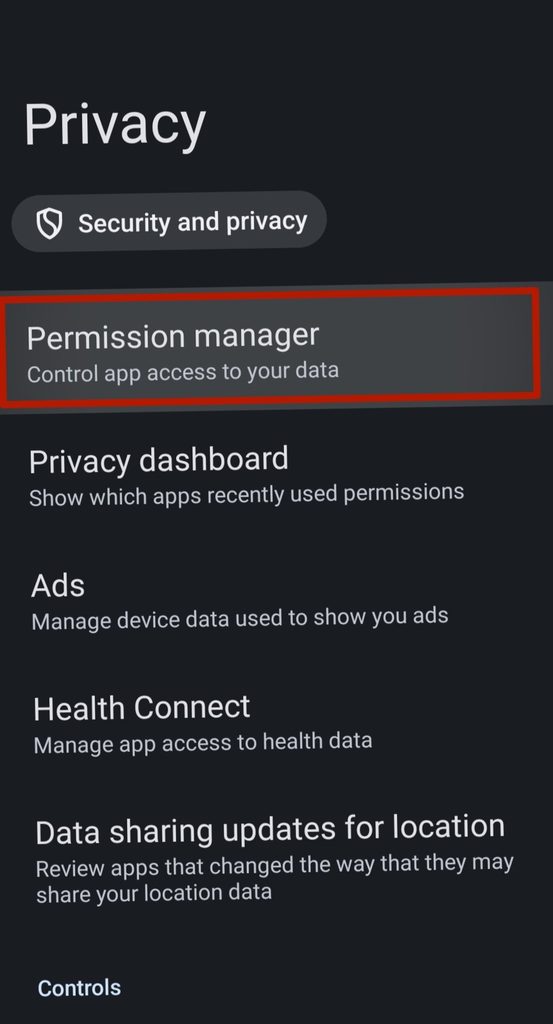
In there, we will be able to see what apps have access to what features. Some apps might be asking for more permissions than they need. If we notice that an app has unnecessary access to our data, it is a good idea to revoke the permissions that it does not need.
Why are permission important?
• Give apps access to our personal data
• Allow apps to access our files
• Allow apps to use our location, camera, and other features
It is always a good idea to make sure that we only allow apps that we know to use our data and features. Instead of giving all the apps access to everything, it is important to make sure that we give them only the permissions that they need to operate.
It might seem like a hassle at first, but it is a tiny step that can have tremendous effects on our privacy.
5. Enable Find My Device
Losing our smartphones can be a stressful experience. However, Android has a feature called Find My Device that can help us recover our lost smartphones.
Our smartphones should be connected to our google account and have location services enabled for this feature to work properly. It is always a good idea to make sure that this feature is enabled before we lose our phones.
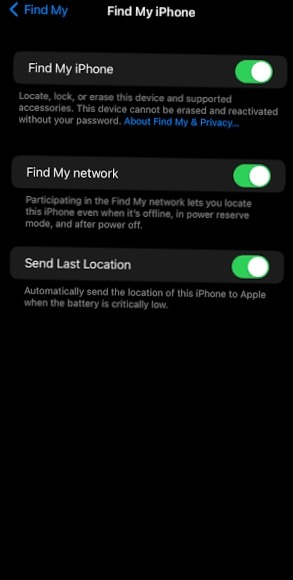
What can Find My Device do for us?
Depending on the options and the smartphone that we have, we will be able to:
• Locate the smartphone
• Play a sound
• Secure the smartphone
• Display a message or contact information
• Remove data from the smartphone remotely
This feature can be especially useful if we travel often with our smartphones and do not want to lose them.
6. Check Which Apps Use The Most Battery
There is a high chance that one of our apps is using a considerable amount of our battery resources. Because of that, it is always a good idea to make sure that we only use the apps that we need and disable the ones that we do not use.
We can check which apps are using the most battery by going to Settings → Battery → Battery Usage.
Depending on the version of our android, we will be able to see which apps are using the most battery. We might be surprised to see which apps are on that list. It is always a good idea to investigate suspicious battery drainage and make sure that the apps that we do not use are not running in the background.
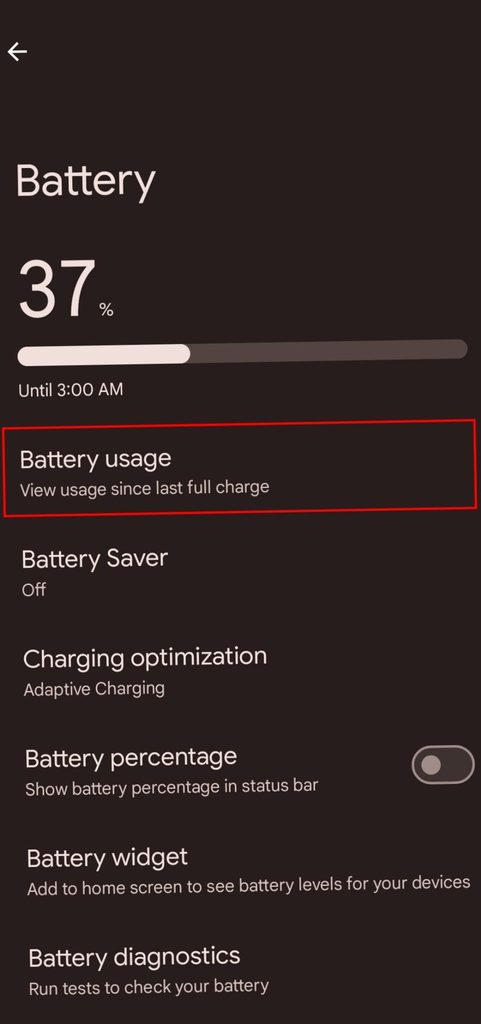
We can manage which apps use our battery by going to the Permissions manager and disabling the permissions that they do not need or completely removing the apps if we do not use them.
7. Use Battery Saver When Your Battery Is Low
Battery Saver is a great feature that kicks in when our battery is low and we need to make sure that it lasts for a little bit longer.
We can typically find the Battery Saver option in Settings → Battery → Battery Saver
Most smartphones also allow us to turn Battery Saver on and off from the Quick Settings menu that we can access by expanding the top of the smartphone.
Battery Saver typically disables some of the background processes and applications that use our battery. For instance, we typically want to disable most of the background processes that we do not need to preserve our battery.
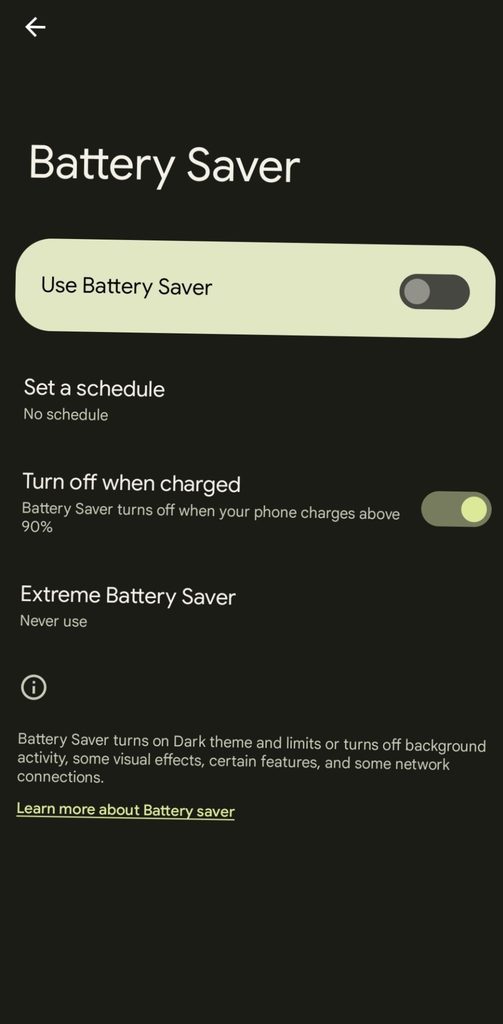
Let us say that we are traveling somewhere and our battery is only at fifteen percent (15%). We would not want to look for a charging station in an unfamiliar place. Hence, we can turn on Battery Saver and have a little more time before we have to look for a charging station.
8. Manage Location Permissions
Location permissions can be crucial for some of our applications. However, we do not want to give location permissions to every app that asks for them. The applications that typically need location permissions are maps, taxi services, and weather services, among others. With that being said, most of the other apps do not need location permissions to function.
We can manage location permissions in the privacy or location settings of our smartphones. Depending on the version of our android, we will be given the following options for each app:
• Always Allow
• Only When In Use
• Always Ask
• Don’t Allow
It is best to choose the option that will give the app the least amount of permission that it needs to function.
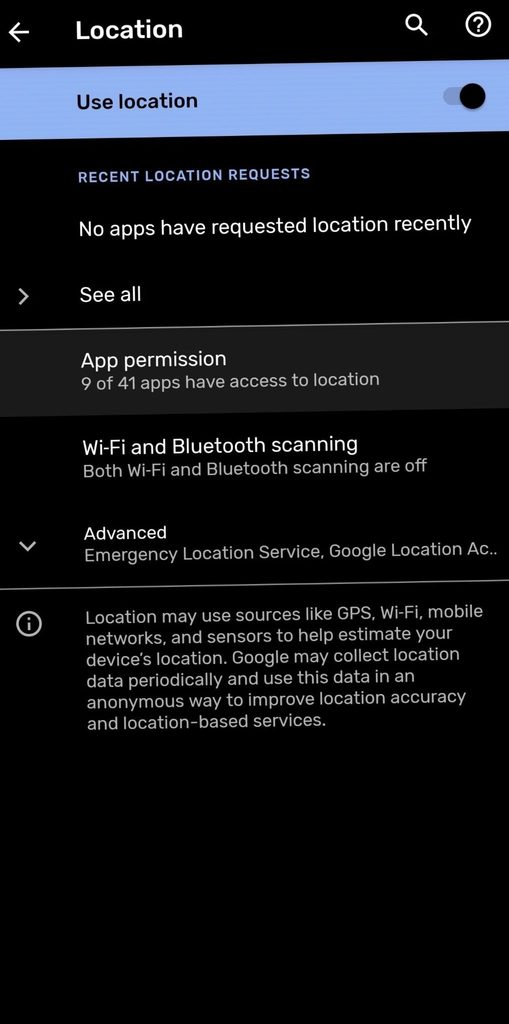
Most of the applications, such as weather services, typically do not need to have continuous access to our location.
9. Protect Your Phone With A Strong Screen Lock
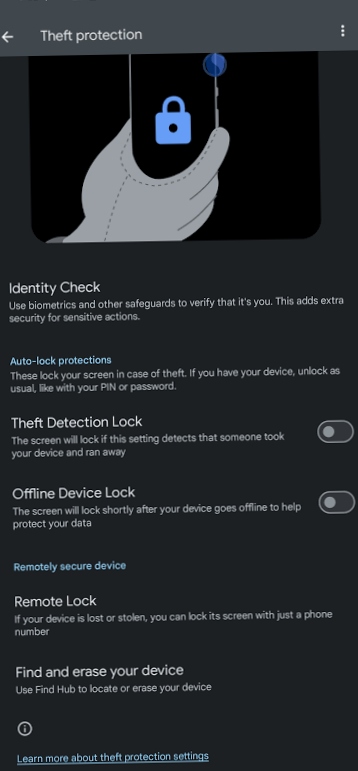
Our smartphone is one of the most personal devices in our possession. It holds a variety of different photos, messages, social media accounts, documents, and more. A strong screen lock is our first line of defense in keeping our data and personal information safe.
10. Check Your Phone’s Storage
Our phone’s storage can be one of the most used parts of our smartphone. We typically store a variety of different media in there, such as photos and videos. In addition, we also store documents and other types of data there as well. However, most of us tend to fill our smartphone’s storage with various photos and videos that we no longer need.
We can check our phone’s storage by going to Settings → Storage.
In there, we can see how much storage our apps, photos, videos, documents, and other data are using. If our storage is full, it is always a good idea to delete the data that we no longer need.
Photos and videos that we take with a high megapixel camera and the large videos that we download are the ones that typically consume the most storage space on our smartphones.
Here are some of the things that we can do to free up some space on our smartphones:
• Delete unnecessary videos
• Delete unnecessary photos
• Delete large unnecessary downloaded files
• Uninstall apps that we no longer use
• Store our photos and videos in the cloud instead of on our phone
• Delete unnecessary files that we no longer need
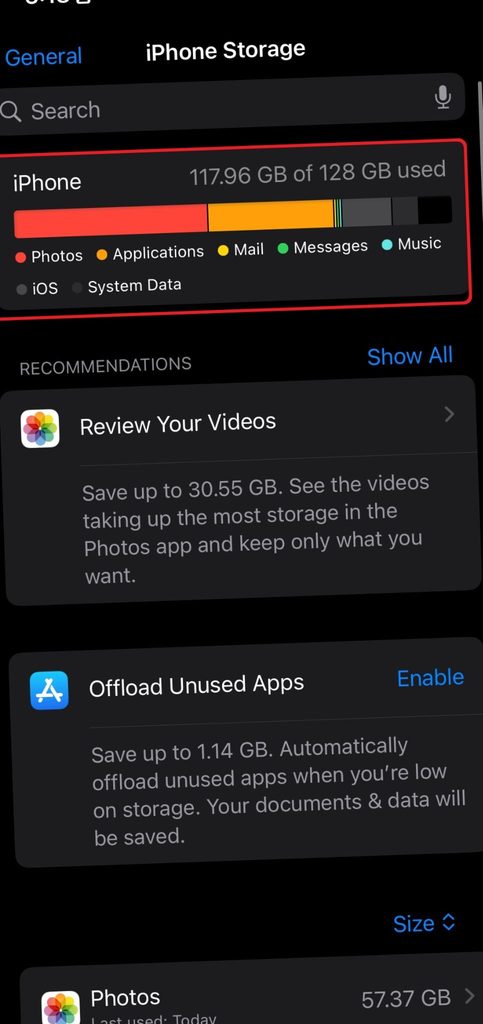
It is always a good idea to free up some space on our phone because it will help us in almost every scenario.
11. Uninstall Apps You Don’t Use
The majority of us tend to download numerous applications that we no longer use. Those applications not only take up storage space on our smartphones, but they also typically run in the background and consume our battery.
It is a good idea to go through our applications every few months and uninstall the ones that we no longer use. We can long-press on an application that we want to remove and click on Uninstall or go to Settings → Apps and uninstall the apps that we no longer need.
Before uninstalling an application, we want to make sure that we do not have any important information stored in them that we have not backed up anywhere else.
Uninstalling the applications that we no longer use will give us more space on our phone and a neater interface.
12. Turn On Google Play Protect
Google Play Protect is a great security feature that protects us from dangerous applications. We can access Google Play Protect by going to Google Play Store → Profile Picture → Play Protect.
Make sure that Google Play Protect is turned on.
Google Play Protect is an essential security feature since most of us tend to install applications that we do not know much about. However, it is also vital that we are mindful about the applications that we install and do not give them too much permission.
Google Play Protect is another layer of security on top of our common sense and safe browsing habits. It is a good idea to make sure that Google Play Protect is always turned on.
13. Customize Quick Settings
Quick Settings can make our life so much easier because they store a variety of different toggles and options that we can use every day. The most commonly used toggles and options are Wi-Fi, Bluetooth, mobile data, airplane mode, flashlight, screen recording, dark mode, battery saver, location, and more.
Depending on the manufacturer of our smartphone, we can customize the Quick Settings menu to our liking. It is a good idea to put the most commonly used toggles at the top of the menu so that we can access them faster.
For instance, if we want to enable the flashlight and battery saver options faster, it is a good idea to move them to the top of the menu so that we do not have to scroll down every time we want to use them.
14. Enable Automatic Backup
Our smartphone is one of the devices that store the most valuable data for us. It stores our photos, videos, contacts, and more. Losing our smartphone can be devastating, but losing all of our data that is not backed up can be even worse. Fortunately, there are several automatic backup features that can help us in such scenarios.
We can access the backup settings and make sure that the data that we want to be backed up is enabled. The data that we can typically back up are our contacts, some app data, device settings, and more. It depends on the version of our android phone and the manufacturer of our phone.
It is vital to remember that having a backup is significantly more important than not having one.
15. Review Notification Settings
We can find a variety of different notification settings in our android phone. Most of the applications that we use will typically send us a notification every time they need our attention. However, we do not want to receive unnecessary notifications from applications that we do not care about. We can review our notification settings by going to Settings → Notifications → App Notifications.
Some applications will give us the option to disable notifications completely. It is always a good idea to disable unneeded notifications from unimportant applications and only allow notifications from important applications, such as messaging services. Having a clean notification panel is a much more organized and productive experience.
Final Thoughts
Android has a lot of different settings and features that can make our smartphone experience much better. However, we do not have to adjust every single setting to improve our experience with the smartphone. We should go over the most important and useful settings and features and adjust them according to our needs. We want to review our application permissions, screen lock, battery, location, and make sure that our important data is backed up.
It is also a good idea to keep our android software and applications updated and remove applications that we no longer use.
The names and location of the settings and features can be different on every android phone. Hence, it is normal if our phone looks a bit different than the ones in the article. We should spend a few minutes exploring the Settings application and discover new and exciting settings and features that will improve our experience with our android smartphone.